Mohammad

Minimal Production Backend Deployment

Production Deployment of a NestJS Backend on AWS EC2 With Nginx, Lets Encrypt, Cloudflare, PM2, and CI/CD

Hero

Production Deployment of a NestJS Backend on AWS EC2 With Nginx, Let's Encrypt, Cloudflare, PM2, and CI/CD

This document presents a complete, production-grade deployment workflow for a NestJS backend application. The stack is intentionally traditional and infrastructure-conscious. We are avoiding the complexity of Kubernetes or Docker for this specific use case.

  • OS: AWS EC2 running Ubuntu 22.04+
  • Runtime: Node 22 managed via NVM
  • Process Manager: PM2 for supervision
  • Web Server: Nginx as reverse proxy
  • TLS: Let's Encrypt for termination
  • Edge: Cloudflare for WAF and DNS
  • CI/CD: GitHub Actions with pnpm

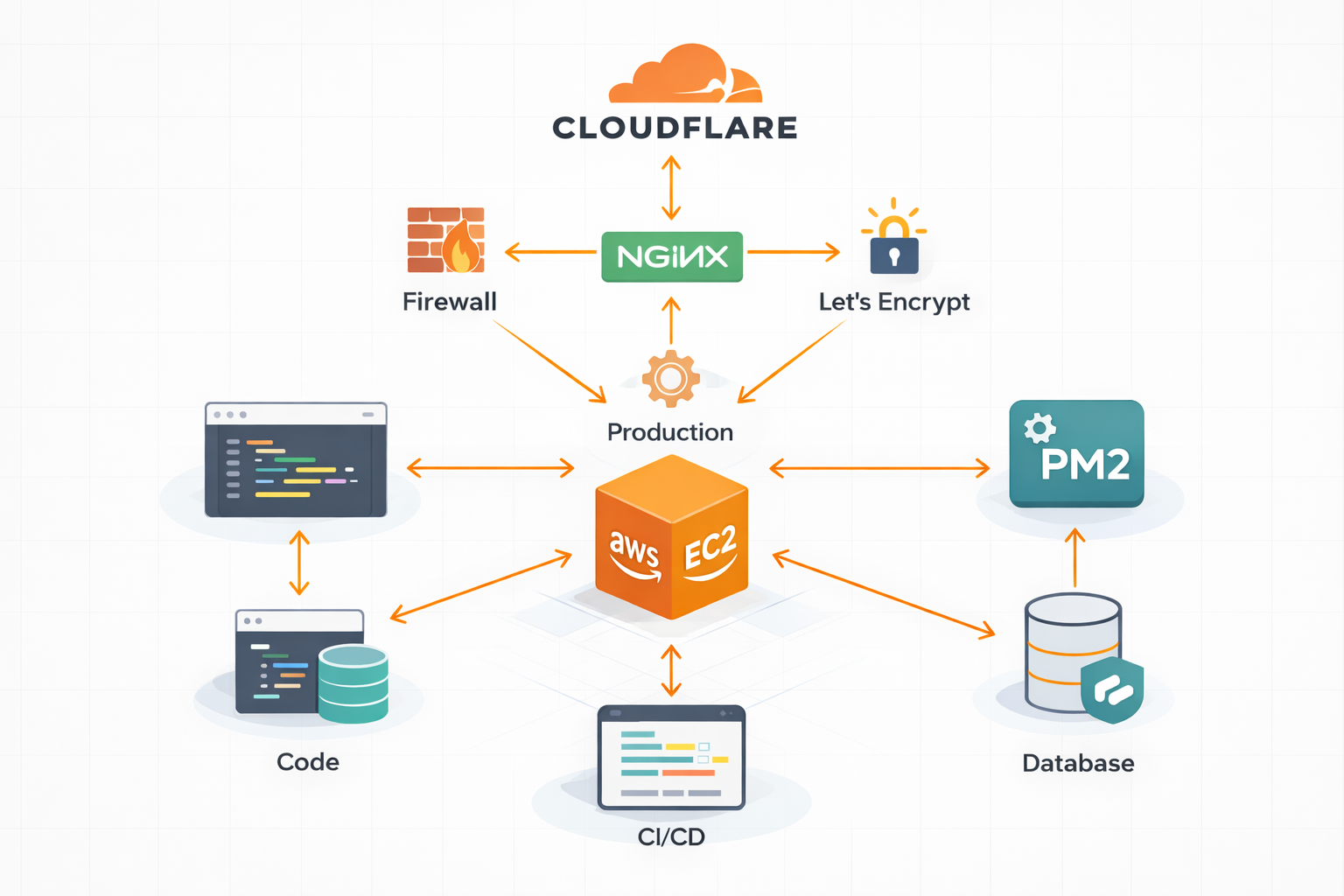
The final topology is layered and deliberate:

Client
  → Cloudflare Edge (WAF, DDoS)
  → Nginx (TLS Termination, Reverse Proxy)
  → PM2 (Process Supervision)
  → NestJS (Bound to internal port 4444)

No container abstraction. No orchestration layer. Just a disciplined Unix-style deployment pipeline. Small surface area, predictable behavior, explicit control.


Why This Architecture

A NestJS backend in production is not simply a Node process listening on a public interface. That would be operational optimism at best.

Each component in this stack serves a specific systems role:

  • NestJS: Handles application logic.
  • PM2: Ensures process continuity and supervised restarts.
  • Nginx: Terminates TLS and isolates the application from the public network.
  • Let's Encrypt: Provides automated certificate issuance and renewal.
  • Cloudflare: Adds DDoS mitigation, bot filtering, and origin shielding. (Also, I used it because the domain was already there, haha!)
  • GitHub Actions: Enforces deterministic builds and repeatable deployment.

Defense in depth. Layered responsibility. and I like it this way, well docker would have been better but as didn't have time to create a docker file, i continued as it is :)


Step 1: Provisioning the EC2 Instance

Launch an Ubuntu 22.04 or newer EC2 instance.

  1. Elastic IP: Attach an Elastic IP immediately. Without it, the public IP changes on stop/start, breaking your DNS and CI/CD secrets.
  2. Set up Security Groups
  3. Connect: SSH into the instance and update the machine. Production servers age in cat years; keep them fresh, just basic stuff.

Step 2: Runtime Environment Setup

Installing Node through apt tightly couples you to distribution packaging cycles. NestJS evolves faster than that. We use NVM.

Install NVM:

curl -o- https://raw.githubusercontent.com/nvm-sh/nvm/v0.39.1/install.sh | bash

Load NVM: You must load NVM in your current session and ensure it loads in non-interactive shells (crucial for CI/CD later).

export NVM_DIR="$HOME/.nvm"
[ -s "$NVM_DIR/nvm.sh" ] && . "$NVM_DIR/nvm.sh"

Install Node 22:

nvm install 22
nvm use 22
node -v

Install PM2:

npm install -g pm2

Step 3: CI/CD and Artifact Deployment Strategy

In this architecture, the EC2 instance is not responsible for compiling the NestJS application. It does not run pnpm build, it does not transpile TypeScript, and it does not carry development tooling. The build phase occurs entirely inside GitHub Actions.

Why the Build Happens in CI

  • Deterministic builds: Tied to a specific commit.
  • Security: No TypeScript compiler or dev dependencies on the runtime host.
  • Actual Reason My EC2 was the most basic one, and building there was taking ages :)

The GitHub Actions Workflow

Below is the refined script. It includes fixes for common pitfalls encountered during implementation (specifically regarding nvm sourcing in SSH sessions and correct entry points).

Pre-requisites: In your GitHub Repo > Settings > Secrets and Variables, add:

  • EC2_HOST: Your Elastic IP
  • EC2_USER: Usually ubuntu
  • EC2_KEY: Your private SSH key content, get by cating the pem file, opening in editer might not work.
name: Deploy

on:
  push:
    branches:
      - main
      - dev

jobs:
  deploy:
    runs-on: ubuntu-latest

    steps:
      - name: Checkout Code
        uses: actions/checkout@v3

      - name: Setup Node
        uses: actions/setup-node@v4
        with:
          node-version: 22

      - name: Setup pnpm
        uses: pnpm/action-setup@v4
        with:
          version: 9
          run_install: false

      - name: Install dependencies
        run: pnpm install --frozen-lockfile

      - name: Build
        run: NODE_ENV=production pnpm build

      - name: Copy Files to EC2
        env:
          EC2_HOST: ${{ secrets.EC2_HOST }}
          EC2_USER: ${{ secrets.EC2_USER }}
          EC2_KEY: ${{ secrets.EC2_KEY }}
          BRANCH_NAME: ${{ github.head_ref || github.ref_name }}
        run: |
          echo "${EC2_KEY}" > ec2_key.pem
          chmod 600 ec2_key.pem

          # Create remote directory if it doesn't exist
          ssh -o StrictHostKeyChecking=no -i ec2_key.pem ${EC2_USER}@${EC2_HOST} "mkdir -p ~/${BRANCH_NAME}"

          # Sync artifacts
          rsync -avz -e "ssh -i ec2_key.pem" --delete ./package.json ${EC2_USER}@${EC2_HOST}:~/${BRANCH_NAME}/
          rsync -avz -e "ssh -i ec2_key.pem" --delete ./pnpm-lock.yaml ${EC2_USER}@${EC2_HOST}:~/${BRANCH_NAME}/
          rsync -avz -e "ssh -i ec2_key.pem" --delete -r ./dist/ ${EC2_USER}@${EC2_HOST}:~/${BRANCH_NAME}/dist/

          rm -f ec2_key.pem

      - name: SSH into EC2 and Deploy
        env:
          EC2_HOST: ${{ secrets.EC2_HOST }}
          EC2_USER: ${{ secrets.EC2_USER }}
          EC2_KEY: ${{ secrets.EC2_KEY }}
          BRANCH_NAME: ${{ github.head_ref || github.ref_name }}
        run: |
          echo "${EC2_KEY}" > ec2_key.pem
          chmod 600 ec2_key.pem

          ssh -o StrictHostKeyChecking=no -i ec2_key.pem ${EC2_USER}@${EC2_HOST} "
            set -e

            # CRITICAL FIX: Load NVM in non-interactive shell
            export NVM_DIR=\"\$HOME/.nvm\"
            [ -s \"\$NVM_DIR/nvm.sh\" ] && . \"\$NVM_DIR/nvm.sh\"
            nvm use 22

            cd ~/${BRANCH_NAME}

            # Install pnpm if missing
            if ! command -v pnpm >/dev/null 2>&1
            then
              npm install -g pnpm
            fi

            # Install production dependencies only
            pnpm install --prod --frozen-lockfile

            # Restart or Start PM2
            # Note: Ensure dist/main.js matches your actual entry point
            if pm2 describe iifa-${BRANCH_NAME} > /dev/null
            then
              pm2 restart iifa-${BRANCH_NAME}
            else
              pm2 start dist/main.js --name iifa-${BRANCH_NAME}
            fi

            pm2 save
          "

          rm -f ec2_key.pem

Important Note on Environment Variables: The script above deploys code, but not secrets. Do not commit .env to GitHub.

  1. Create a .env file manually on the EC2 inside the project folder (~/main/.env).
  2. I Used nano to paste your secrets there, I hate vim, i Hate is so much, that i would use anything but not vim.
  3. Ensure your NestJS app loads this file (e.g., using @nestjs/config).

Step 4: Runtime Validation

After the first deployment, verify the application is actually running before configuring Nginx.

Check PM2 Status:

pm2 status

Ensure the status is 'online'.

Inspect Logs: Use the name, not the ID (IDs change on restart), i use ids, because its my choice.

pm2 logs 1

Validate Local Binding: NestJS should be listening on localhost:4444 (or whatever port you configured).

curl http://localhost:4444

If you get a JSON response or your app's default output, the Node process is healthy.


Step 5: Nginx Reverse Proxy Configuration

Node should not bind to public interfaces, Nginx handles blah blah, do as i do, or dont :)

Install Nginx:

sudo apt install nginx -y

Configure Site:

sudo nano /etc/nginx/sites-available/api
  • modify the configuration then

Add Configuration:

server {
    listen 80;
    server_name api.yourdomain.com;

    # Security Headers
    add_header X-Frame-Options "SAMEORIGIN" always;
    add_header X-Content-Type-Options "nosniff" always;

    location / {
        proxy_pass http://localhost:4444;
        proxy_http_version 1.1;
        proxy_set_header Upgrade $http_upgrade;
        proxy_set_header Connection 'upgrade';
        proxy_set_header Host $host;
        proxy_set_header X-Real-IP $remote_addr;
        proxy_set_header X-Forwarded-For $proxy_add_x_forwarded_for;
        proxy_set_header X-Forwarded-Proto $scheme;
        proxy_cache_bypass $http_upgrade;
    }
}

Enable and Test:

sudo rm /etc/nginx/sites-enabled/default
sudo ln -s /etc/nginx/sites-available/api /etc/nginx/sites-enabled/
sudo nginx -t
sudo systemctl restart nginx

Test:

curl http://<your-elastic-ip>

You should see your NestJS response, not the Nginx welcome HTML.


Step 6: DNS and Cloudflare Proxy

  1. Add Record: In Cloudflare DNS, create an A Record.
    • Name: api
    • IP: Your EC2 Elastic IP
    • Proxy: Enabled (Orange Cloud) // initially can be left and once we verify we getting it in v6, we can enable it back.
  2. Verify Propagation:
    dig api.yourdomain.com +short
    The IPs returned should be Cloudflare ranges, not your EC2 IP. If you still see your EC2 IP, it's DNS caching. Wait a few minutes or flush your local DNS.

At this point, traffic flow is: Client → Cloudflare → Nginx → NestJS.


Step 7: TLS with Let's Encrypt

Currently, our backend is on HTTP. We need to encrypt it. Since Cloudflare is proxying, we have two options for SSL. We will terminate SSL at the Origin (EC2) using Let's Encrypt for full control, while Cloudflare handles the edge SSL.

Install Certbot:

sudo snap install core
sudo snap refresh core
sudo snap install --classic certbot
sudo ln -s /snap/bin/certbot /usr/bin/certbot

Request Certificate:

sudo certbot --nginx -d api.yourdomain.com

Select "Redirect HTTP to HTTPS" when prompted.

Verify:

curl -I https://api.yourdomain.com

Headers should indicate server: cloudflare and HTTP/2.

Auto-Renewal: Certbot installs a systemd timer automatically. Verify it works:

sudo certbot renew --dry-run

Step 8: Hardening the Origin (Critical)

Cloudflare proxy hides the IP from public DNS queries, but AWS Security Groups still allow direct access to the EC2 IP. If someone finds your IP, they can bypass Cloudflare's WAF.

Update AWS Security Group:

  1. Go to EC2 Console → Security Groups.
  2. Edit Inbound Rules for HTTP (80) and HTTPS (443).
  3. Change Source from 0.0.0.0/0 to Cloudflare IP Ranges.
    • You can find the current ranges here: https://www.cloudflare.com/ips/
    • (Or keep it open if you prefer simplicity, but restricting it is "Security by Design").

Result: Only Cloudflare can reach your origin. Direct access attempts via the EC2 IP will fail.


(waste of time) Ai written Onwards :)

Troubleshooting & Lessons Learned.

During the implementation of this flow, several issues arose. Here is how I resolved them, so you don't have to struggle:

IssueRoot CauseResolution
PM2 command not foundGitHub Actions SSH session is non-interactive; nvm wasn't loaded.Explicitly source nvm.sh inside the SSH script block in CI/CD.
App fails to startWrong entry file (dist/index.js vs dist/main.js).Verified build output and updated PM2 start command to dist/main.js.
Connection RefusedNginx not installed or Security Group port 80 closed.Installed Nginx, enabled service, and opened Port 80 in AWS SG.
Still seeing Origin IPDNS Caching.Verified with dig cleared local cache.
Env Vars Missing.env file not transferred via CI/CD (for security).Manually created .env on EC2 using nano in the project root.

Final Thoughts

A backend in production is not about frameworks. It is about process boundaries, network layering, and predictable runtime behavior, right ?, well maybe, you dont have to belive it.

  • PM2 keeps the process alive.
  • Nginx isolates the application.
  • Let's Encrypt automates trust.
  • Cloudflare absorbs chaos.
  • CI/CD eliminates drift.

Simple stack. Strong guarantees. No magic, just mechanics.
, Mohammad

On this page